
Disconnect Rust Guide
How to Use the Rust Cheat Menu
You want to change how the cheat behaves, but moving the wrong slider can leave the original problem untouched. The Rust cheat menu separates aiming, player visuals and weapon controls so you can work on the part that matters. If your view is crowded, start with ESP. If the weapon moves during a burst, look at recoil before changing target selection.
This guide follows the Rust cheat menu in Disconnect Rust External and its documented feature labels. It gives you a route through the main settings without asking you to copy someone else's entire setup. The aim is to understand what you are changing and keep the rest of your config predictable.
Start with the feature you want to change
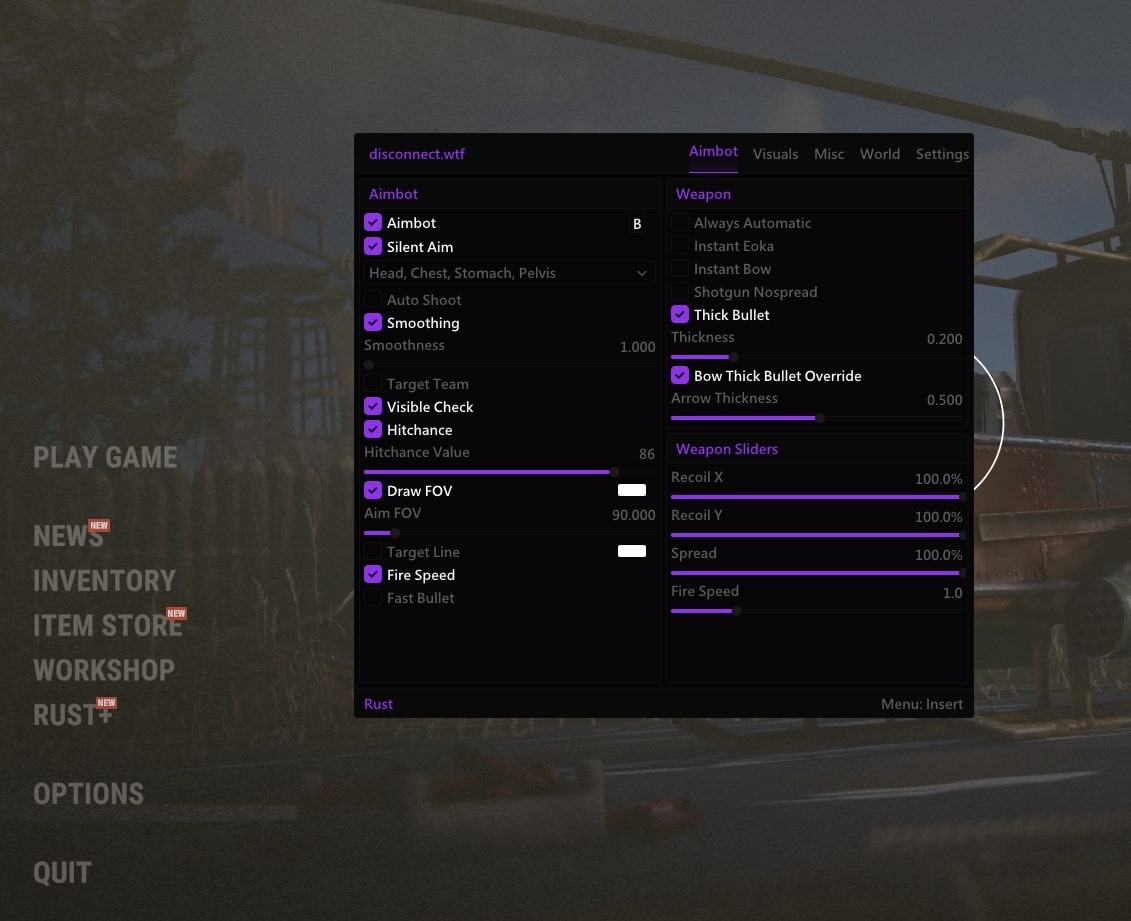
The Rust cheat menu shown here has Aimbot, Visuals, Misc, World and Settings tabs. The Aimbot view places aim controls beside weapon controls, while player information and world objects have their own groups. That layout matters because two settings can sit close together while affecting different parts of a fight.
For example, a player box and an aimbot FOV circle are both visible on screen. Rust ESP settings govern the player information you see, while the FOV control belongs to aiming. Making the circle larger does not make the player's name easier to read or increase the range of every visual feature.
Approach the Rust cheat menu with one clear question. You might want a less crowded view around your base, a different aim hitbox or separate recoil adjustment. Change the relevant group first. If you alter aim, visuals and weapons together, it becomes harder to tell which choice produced the behaviour you noticed.
Choose the aimbot target and movement settings
Rust aimbot settings include hitbox choices for the head, chest, stomach and pelvis. The selected hitbox identifies the part of the player the aim feature targets. It is worth understanding that choice before adjusting how the aim moves, because a different target point can change what you expect to see during an encounter.
In the Rust cheat menu, aimbot smoothing concerns ordinary aim movement towards the selected target. It belongs with the regular aimbot controls. Rust silent aim is a separate feature, so do not assume that an explanation of smoothing describes silent aim behaviour as well.
The aimbot FOV and Draw FOV controls give you a selection area and a visible reference for it. Target Line adds another reference to the selected player. These can help you understand what the aim feature is doing, but drawing more guidance on screen will not resolve an unrelated player filter or recoil setting.
The Rust cheat menu also includes a hit chance setting and teammate targeting. A percentage in the interface is a setting, not a measured promise that the same percentage of your shots will hit during a match. For a fuller explanation of aiming, read the existing Rust aimbot guide.
Make player ESP readable
Rust player ESP covers names, boxes, skeletons, held items and distance, with filters for teammates, wounded players, sleepers and dead players. Start with the information that helps you locate and identify the person. Then decide which additional fields you can read without losing sight of the doorway or cover around them.
The Rust cheat menu lets you choose full or corner boxes. A full outline may be easier to notice, while corners leave more of the character and background visible. Skeleton ESP can add posture information. If a nearby group becomes a cluster of lines, simplify the outline before adding another colour to the same crowded area.
Distance labels and held items are useful supporting fields because they answer specific questions about the marked player. Name labels help when several people cross paths. Rust chams add material choices for player highlights, giving you another way to distinguish the model without relying only on text.
Use the Rust cheat menu to decide which player states should stay visible. Sleepers and dead players can be useful around a base, but they do not need to draw the same attention as the active opponent approaching you. A display you can read at a glance is more useful than one with every available field enabled.
Keep world objects separate from player visuals
Rust World ESP covers supported objects such as ore, collectables, deployables and loot containers. Sulfur ore ESP answers a resource question, while player ESP answers a player question. Keeping those purposes separate makes it easier to choose a display for a farm run without carrying the same clutter into a close fight.
Within the Rust cheat menu, use the relevant object filters rather than enabling a whole group simply because it exists. If you are looking for resources, a screen full of unrelated deployable markers can make the resource labels harder to follow. The useful choice is the one that keeps the object you need recognisable.
Rust radar provides a separate positional view, with its own render distance and radius. It can sit alongside the main player display, but the panel does not replace the scene in front of you. Keep the radar easy to glance at without covering the part of the screen you use to follow nearby movement.
The broader Rust ESP article covers player visuals, world objects and radar in more detail. In this guide, the key is knowing which group to return to when you want fewer resource markers, clearer player labels or a different radar view.
Find recoil and spread under weapon controls
Rust recoil control is handled separately from aimbot target selection. The weapon features include Override Recoil, Recoil Amount X and Recoil Amount Y. Those controls concern horizontal and vertical recoil, while Spread Amount concerns weapon spread. A change to one does not answer every reason a burst misses.
The Rust cheat menu screenshot shows Recoil X, Recoil Y and Spread together under Weapon Sliders. That makes the distinction easy to see: recoil adjustment and spread adjustment are separate settings even though both affect shooting. Do not treat the values shown in an example image as a universal preset for your own session.
Rust weapon spread describes variation in where shots travel around the aimed direction. Recoil concerns movement produced during firing. If the weapon is climbing, changing the player box will not address it. If your aim starts away from the player, recoil adjustment cannot supply the missing target selection.
The Rust cheat menu also contains other weapon features, including Instant Eoka and Instant Bow. Their presence does not mean you need them enabled to adjust recoil. Work on the feature you came to change and leave unrelated controls alone until you have a reason to use them.
Keep a config you understand
A Rust cheat config is useful when it preserves choices you can explain. If you like the player display but want to change aim behaviour, keep those decisions separate in your mind. Otherwise, loading a different preset can change several familiar details at once and make the whole setup feel inconsistent.
The Rust External menu includes a Menu Keybind option and configuration choices. Check the binding assigned in your own setup instead of assuming a screenshot proves the key has never been changed. The same care applies to colours, font choices and outlines, which affect how comfortably you read the screen.
Once the Rust cheat menu makes sense, you can return to a specific feature without rebuilding everything around it. Disconnect's Rust cheats guide covers the wider feature set, and Rust External is the product used throughout this menu guide.
Frequently asked questions
Are the recoil sliders part of the aimbot FOV?
No. Recoil X and Recoil Y concern weapon recoil. Aimbot FOV concerns the aim feature's selection area, with a separate option to draw its circle.
Does changing the menu key change the aimbot key?
Menu Keybind concerns opening the menu. Do not assume that it also changes a feature's activation binding. Read the label beside the control you are editing.
Should you copy every setting from the screenshot?
No. The image shows the interface and its feature groups. Understand each control before using it, and do not assume the pictured values are defaults or a recommended preset.