
Disconnect Wardogs Guide
Get Started with the Wardogs Cheat Menu
You want clearer enemy markers, a different aiming setup or a radar you can read without looking away for too long. The Wardogs cheat menu brings those settings together, with separate controls for the features that affect your aim and the information shown on screen. Knowing where each change belongs helps you keep the rest of the setup familiar.
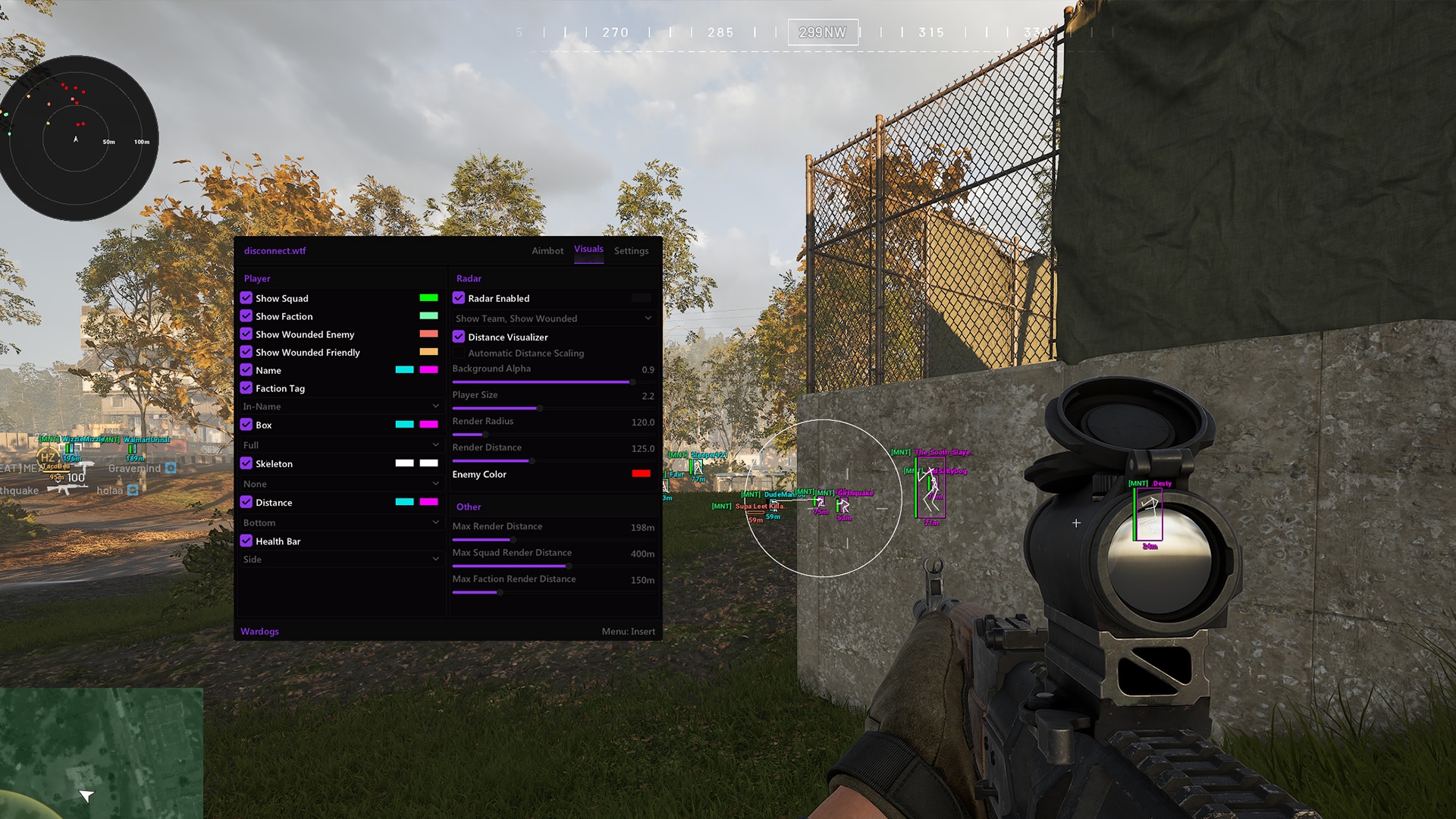
Disconnect Wardogs External's gallery shows Aimbot, Visuals and Settings tabs, with the Player and Radar groups visible inside Visuals. This guide follows those feature groups and the documented aiming, zoom and config controls. It is about finding the setting that answers your question, rather than copying every value from a screenshot.
Choose the feature that needs attention
Start in the Wardogs cheat menu with the behaviour you want to change. If friendly markers are filling the screen, look at the player filters. If the radar is difficult to read, use its panel and marker controls. If the aim feature is selecting a target differently from what you expect, the aiming controls deserve attention first.
Wardogs cheat settings become easier to understand when you keep those purposes separate. A larger radar does not enlarge the aimbot's selection area, and a different box colour will not change the selected aim bone. The names can sit near each other in the interface while answering different questions during a fight.
Use the Wardogs cheat menu to make one meaningful change at a time. That lets you keep a useful player display while working on aim behaviour, or keep your aiming choices while simplifying the visuals. You do not need to rebuild the entire setup whenever one part needs adjusting.
Find target selection and aimbot movement controls
Wardogs aimbot settings include head, chest and pelvis target choices, plus aimbot prediction. The bone choice concerns where on the selected player the aim feature is directed. Prediction addresses movement, so it is relevant when the person you are following is changing position rather than standing still.
In the Wardogs cheat menu, Visible Check, Lock Target and maximum aim distance belong to target selection. They help define which target the aim feature uses and the conditions around that selection. Keep those choices in mind before changing a movement setting because the aim has followed a different player.
Aimbot smoothing concerns ordinary aim movement towards the target. Aimbot deadzone is another aiming control, and it should be understood separately from the player ESP display. These settings are not a reason to assume silent aim has the same movement behaviour or that one number will suit every encounter.
The Wardogs cheat menu also includes an adjustable aimbot FOV, Dynamic FOV, an FOV circle and a target line. The visual references can help you understand the aim feature's selection without adding every available guide to the screen. Read the Wardogs aimbot guide for the detailed feature explanation.
Put useful player information around the outline
Wardogs ESP settings let you choose names, boxes, skeletons, distance and health bars. The useful starting point is a player outline you can find quickly, followed by the fields that explain what you need to know. A clear distance label can be more valuable than a second layer of lines over the same nearby player.
The Wardogs cheat menu places Show Squad and Show Faction in the Player group. Those controls let you decide how much friendly information belongs in the main view. Separate squad and faction render distances help you retain useful nearby context without giving every distant friendly marker equal attention.
Show Wounded Enemy and Show Wounded Friendly add player state to that picture. Keep their colours recognisable alongside the visible and hidden player colours. When several people are close together, you should be able to tell which marker needs attention without reading every name first.
Use the Wardogs cheat menu to arrange the remaining fields around that outline. Faction Tag can add group information, while health bars and distance have placement choices. The screen becomes easier to read when each label has space, especially as players move close enough for their boxes to overlap.
Add loadout cost only where it helps
Loadout Cost ESP adds cost information to the player display, with a minimum cost control and placement choices. It can help you identify a marked player carrying a more valuable loadout, but the number still needs to be readable alongside the other fields you have chosen.
In the Wardogs cheat menu screenshot, the loadout cost label sits within the Player group. That is a useful reminder to think about it as part of the player's visual information. It does not represent a money generator or a complete view of every inventory item, and it should not be described as the player's spendable cash balance.
If names, faction tags and cost labels all compete for the same space, choose which field matters to the situation. Keep the outline and distance legible before adding more text. The broader Wardogs ESP guide covers those player fields in more detail.
Give radar and zoom their own settings
Wardogs radar settings sit beside the Player group in the gallery's Visuals view. Radar Enabled, Show Team and Show Wounded control the basic view and its filters. Distance Visualizer and Automatic Distance Scaling provide distance context, while the panel has separate size and range adjustments.
The Wardogs cheat menu names those adjustments Render Radius and Render Distance. Radius concerns the panel size, while distance concerns the range represented in it. Player Size, Background Alpha and Enemy Color then help you make the markers readable against the radar background.
Zoom has its own keybind and adjustable zoom FOV. It concerns the camera view, so keep that choice separate from aimbot FOV and the radar's range. If the camera view is what you want to change, adjusting a circle or a radar distance is not the same action.
Use the Wardogs cheat menu to keep all three views understandable: aiming references, player ESP and the radar panel. You can simplify one without making every other feature more complicated. Leave enough of the actual game visible to follow cover, movement and the player you are watching.
Save a setup you can return to
A Wardogs cheat config is useful because it retains choices you already understand. Before saving, make sure the colours still mean what you expect and the player filters match the view you want. A familiar arrangement is easier to use than a new collection of settings whose effects you have not separated yet.
The Wardogs External menu supports configuration management, including Import Config and Export Config. A config brought in from elsewhere may change multiple features together, so check its aiming and visual choices before treating it as your own starting point. The Wardogs cheat config guide covers that workflow in detail.
When the Wardogs cheat menu is familiar, you can return to a specific control without losing the settings that already work for you. If the issue is a feature that is not behaving as expected, use the existing aimbot troubleshooting guide or ESP troubleshooting guide for that particular problem.
Put the settings together around your session
Disconnect's Wardogs cheats guide covers the wider feature set. Keep your menu choices focused on the aim behaviour and player information you want, then save the combination once the view is clear and the controls make sense to you.
See Wardogs External for the product and gallery used in this Wardogs cheat menu guide.
Frequently asked questions
Where are player ESP and radar shown in the menu?
The current gallery shows Player and Radar groups side by side in the Visuals tab, with separate filters and display controls for each.
Is zoom FOV the same as aimbot FOV?
No. Zoom FOV concerns the camera view. Aimbot FOV concerns the aim feature, while radar distance belongs to the separate positional display.
Should you enable every player label?
Only keep the information you can use and read clearly. Boxes, names, distance, health and cost labels can overlap when several players are close together.