
Disconnect Wardogs Guide
How to Check Wardogs ESP in OBS Recordings
A Wardogs ESP recording check needs to inspect the saved video, not just the screen you play on. OBS can capture a game, a window or an entire display, and those sources do not necessarily show the same result. Test the exact scene and capture source you intend to use before recording a full session or going live.
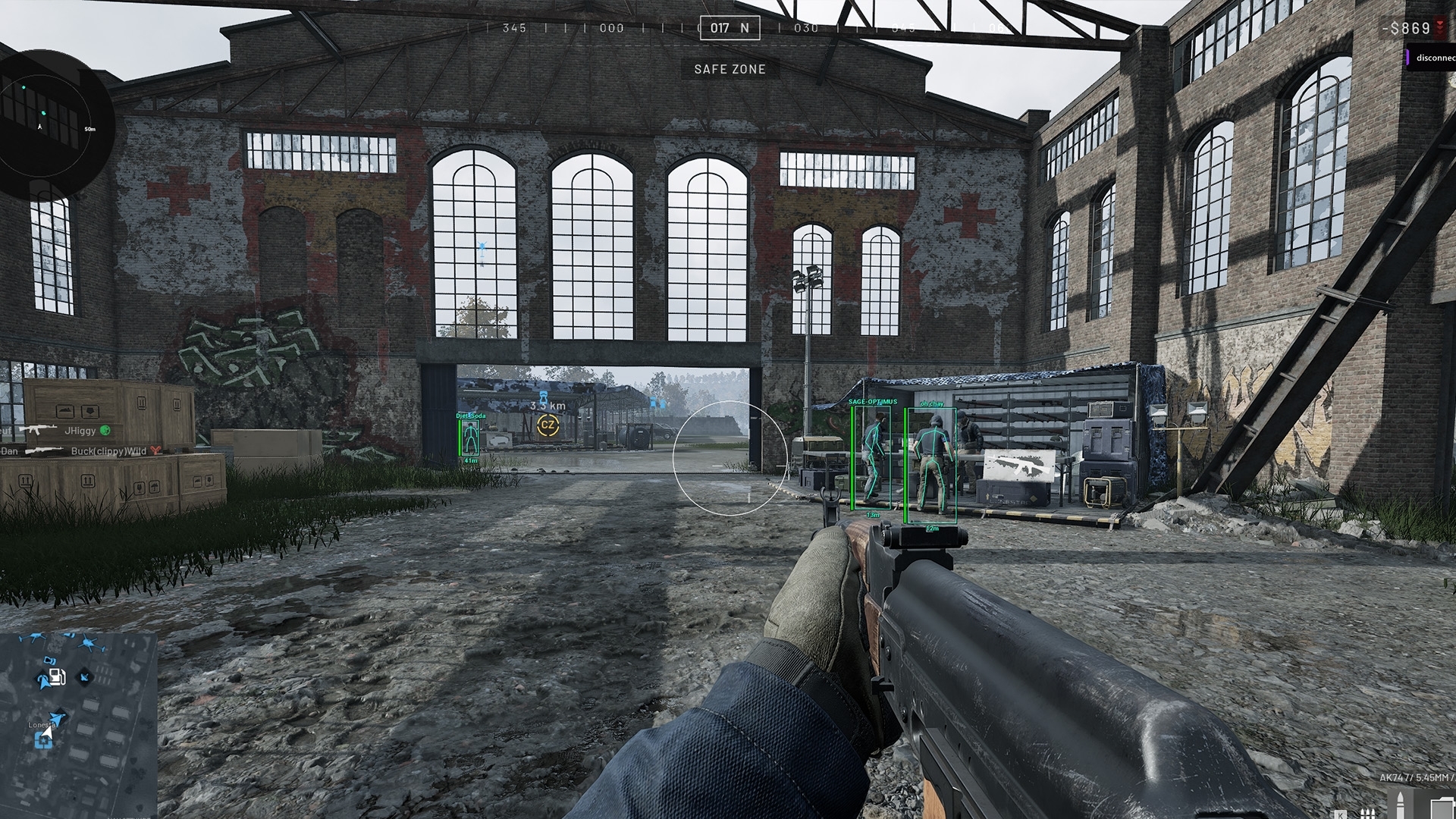
Make a short local recording, open the saved file and inspect the ESP, radar and other on-screen elements. Product wording about recording visibility does not guarantee identical behaviour with every OBS source or scene.
Identify the source used for your Wardogs OBS recording
OBS Game Capture captures the game directly on Windows. OBS Display Capture captures an entire monitor. OBS Window Capture targets a selected window. These distinctions are described in OBS’s own documentation and matter before you judge what should appear in the recorded output.
A Wardogs game capture check therefore needs to record which source you selected. A Wardogs display capture check needs to identify the monitor as well. Do not change sources halfway through a test and treat the two recordings as evidence of identical behaviour.
See the Wardogs cheats guide for the full aimbot, ESP and radar feature overview.
Check the active scene and window selection
An OBS scene can contain more than one source. Check the active scene, the visible sources and the window selection before recording. A second display source can show content you did not expect even when the game source itself looks correct.
If you use multiple scenes, inspect each one you plan to switch to. A recording test for the gameplay scene does not establish the output of a desktop, break or full-screen camera scene. Record the same transitions you intend to use during the session.
Test Player ESP and the separate radar
Player ESP and radar occupy different parts of the gameplay view. Include both in your review if you normally use both. Seeing no player boxes in one frame does not establish that the radar is absent elsewhere in the recording.
Use a moment where the relevant feature is actually visible on your play screen. An empty scene with no qualifying players does not test whether an ESP overlay would appear when players enter range. Keep the game and cheat configuration consistent during the check.
Inspect the FOV circle and other cheat displays
The FOV Circle and Target Line can appear separately from player boxes. The FPS Counter and Watermark may also be active. Include each enabled element when reviewing the saved clip instead of checking only the most obvious skeleton or box.
If you alter one of those features after your first test, record another short sample. A result from one configuration does not establish what a different combination of on-screen elements will produce.
Open the saved clip rather than trusting the preview
The recording preview helps you see the composition, but the saved file is the output you will keep or share. Make a short local recording and open it in a player. Check the beginning, gameplay portion, menu opening and any scene transition you recorded.
If the clip is black, frozen or capturing the wrong window, resolve the capture problem before drawing conclusions about ESP visibility. OBS provides a Game Capture troubleshooting guide for source problems. A broken recording is not evidence that the cheat is excluded correctly.
Keep capture behaviour separate from cheat status
Check whether Wardogs ESP appears in each OBS source you use. Record the source, scene and cheat configuration alongside the result, so you know exactly which combination produced that output.
Whether an overlay appears in a video does not establish what an anti-cheat can detect. A clear recording does not protect an account from penalties. Use the live product status for availability and keep that check separate from your OBS test.
Repeat the check when the capture setup changes
Repeat the short recording check after changing capture sources, scenes or the way the game is displayed. Also review the result after relevant application updates. Keep a note of the working source and scene so you can identify what changed when a later clip looks different.
Read the main Wardogs cheats page for the product’s aimbot, ESP and radar context. For a capture problem, report the source type and observed output to support. Do not send a subscription key or account credentials with a screenshot or clip.
Questions about recording Wardogs ESP
Does one successful OBS test cover every scene?
No. Test the scenes and capture sources you actually intend to use, including transitions.
Should I check the preview or the saved video?
Check the saved video. The preview is useful for composition, but the recorded file is the output you will keep or share.
Which cheat elements should I inspect?
Check every enabled element, including Player ESP, radar, FOV Circle, Target Line, FPS Counter and Watermark where used.
Does hiding ESP from a recording prevent detection?
No. Recording visibility and anti-cheat detection are separate questions.
More Wardogs guides
Why Your Wardogs ESP Is Not Showing Players
How to Save and Share Wardogs Cheat Configs
OBS Game Capture · OBS Display Capture · OBS Window Capture · OBS capture troubleshooting
Wardogs External product and access periods · Current Wardogs cheat status