Disconnect Wardogs Guide
Spot Nearby Players with Wardogs Radar
You are watching an enemy ahead while another player moves around your side. Wardogs radar gives you a separate view of player positions, so you can check what is happening around you without relying only on the direction your camera is facing. Disconnect Wardogs External includes radar with team and wounded filters, distance controls and adjustable display settings.
The useful habit with Wardogs radar is a quick glance followed by attention back on the fight. You want enough information to recognise a nearby position or a changing group, with a panel that remains easy to read beside the main scene. A larger display filled with more dots is not automatically a clearer one.
Find players beyond the centre of your screen
A Wardogs radar hack puts supported player positions into a compact display around your own position. That can draw your attention to someone outside your immediate view or help you recognise that several players are gathering in the same direction. You do not have to turn every position into a long label across the main scene.
Wardogs player radar is particularly useful when your attention has narrowed to one opponent. The panel gives you a way to notice a second position that deserves a look. It does not identify the doorway, wall or route you should use on its own, so bring the information back to the game view before acting on it.
Think of Wardogs radar as a positional reference alongside the encounter. A marker moving closer can tell you something different from a group staying further away. Keep checking how the positions change, rather than treating the arrangement you saw a moment ago as a permanent picture of the fight.
Understand the panel before increasing its range
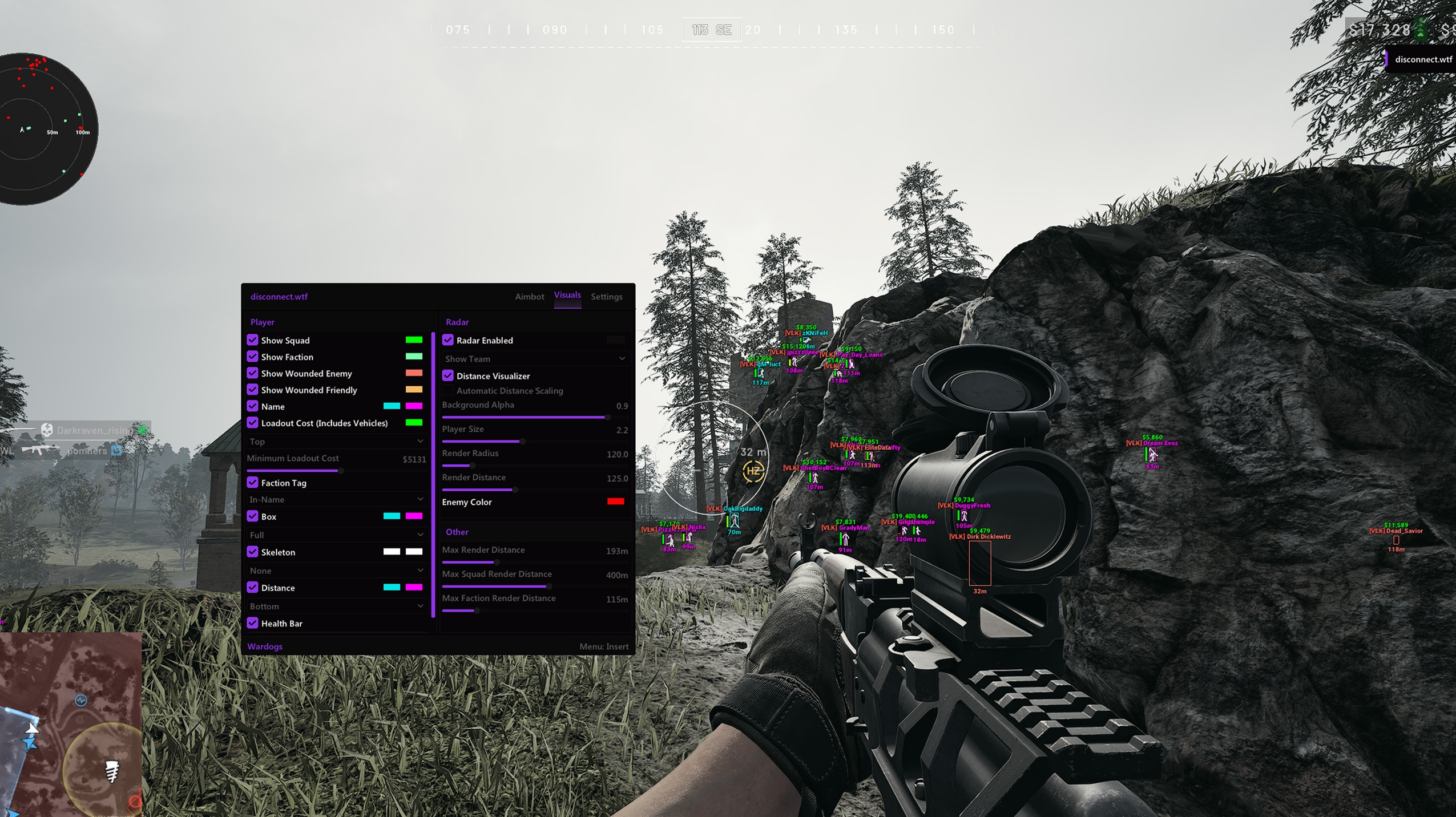
The gallery shows the radar as a circular display with player markers and distance rings. The Radar Enabled control turns on that view, while Distance Visualizer provides a distance reference. Those rings help you interpret how far a dot sits from your position rather than judging distance from the edge of the panel alone.
Wardogs radar settings include Render Radius and Render Distance. Render Radius concerns the size of the display, while Render Distance concerns the distance represented by the radar. Increasing the size of the circle gives the markers more screen space, but it does not by itself extend the world distance being shown.
Automatic Distance Scaling is another available control. When you use it, pay attention to the distance reference as well as a dot's apparent spacing on screen. A changing scale means the same visual gap should not automatically be read as the same world distance. The rings are there to help you retain that context.
For Wardogs radar, range should serve the situation you are trying to read. A broad view can give you context about a group further away. A crowded nearby fight may be easier to follow when distant information is not compressed into the same small circle. Keep the useful positions legible before looking for a wider view.
Decide whether team and wounded players belong in the view
The Wardogs radar cheat includes Show Team and Show Wounded filters. Team filters can help you understand where friendly positions sit relative to the players you are watching. They also add markers, so decide whether that context helps the current view or makes an already crowded panel harder to read.
Wounded filters answer a different practical question. If a player is down, keeping that position visible can help you understand why a dot remains near the fight while others move away. Hiding wounded positions produces a different picture, so remember what you have chosen before interpreting a missing marker as an empty area.
Keep Wardogs radar filters consistent with the job you want the panel to do. If you mostly use it to notice nearby movement outside your view, make sure the markers that matter remain obvious. If you want the wider team picture, leave enough room for the additional friendly positions to remain distinct.
The main player display has its own squad, faction and wounded settings. Do not assume that changing one of those main ESP filters necessarily explains every dot on the radar. Read the control in the relevant group, especially when a saved config gives the panel and the main view different levels of detail.
Make the dots readable without hiding the game
Player Size changes how large the markers appear in your Wardogs radar view. Bigger dots can be easier to notice, but nearby positions can merge when they are drawn too large. Start with whether you can distinguish the group, then adjust the panel and markers together so one does not overwhelm the other.
Wardogs radar also provides Background Alpha and Enemy Color controls. Radar transparency affects how strongly the panel background sits over the game, while the enemy colour affects how easily those markers stand out. A nearly transparent background may look tidy but leave dots harder to recognise over a complicated scene.
Choose a colour that you can pick out consistently against the radar background. Keep its meaning stable when you change other visual settings. If you spend time remembering whether a particular colour means an enemy or a friendly player, the panel is taking too much attention away from the encounter.
Wardogs external radar should remain a quick reference. Give the panel enough space to read while keeping the area around your sight clear. You should be able to glance at a position and return to the main view without having to study a crowded diagram during the fight.
Use radar and player ESP together
Wardogs radar helps you notice where to look. Wardogs ESP adds detail to the player once you are following their position in the main view, including boxes, skeletons, names, distance and health information. That pairing lets the radar stay compact while the main display carries the more detailed player fields.
For example, a dot moving towards your side gives you a reason to check that direction. The main player marker can then help you understand the person's position relative to a wall or opening. The radar does not need to carry every label that the main display can already show more clearly.
Keep the limits of radar range in mind. The displayed positions depend on the radar's settings and supported information, so the absence of a dot is not proof that the entire area is empty. Likewise, a dot does not show every obstacle between you and that player.
The existing Wardogs ESP guide explains the main player display, while the Wardogs cheat config guide covers retaining your settings. Use those deeper guides when you want to change the labels or preserve a display you already understand.
Keep a radar view you can read quickly
A useful Wardogs radar setup gives you a clear distance reference, recognisable player markers and filters suited to the information you want. Keep the circle readable before increasing its range, then use the main scene to understand the actual cover and movement around each position.
Disconnect's Wardogs cheats guide covers the wider features alongside radar. See Wardogs External for the product and gallery shown here.
Frequently asked questions
Does making the radar bigger increase its world range?
No. Render Radius controls the display size, while Render Distance concerns the distance shown. They should be treated as separate adjustments.
Can the radar show team and wounded players?
Yes. The current gallery shows Show Team and Show Wounded in the radar filter control. Your choice affects which positions remain in the panel.
Is this a separate browser radar or a shared map?
This guide covers the radar displayed alongside Wardogs gameplay in Disconnect's gallery. It does not describe a browser radar, shared map or second computer setup.